Turn a Photo Into a Talking Video
Upload a still portrait, add a voice clip or a script, and gVideo renders a fully animated talking-video — lip-sync, natural motion, broadcast-quality audio. Launching with HeyGen V3 (TTS) and Omnihuman (bring-your-own audio) inside the gVideo Avatar Studio.
Avatar Studio
Generate your avatar video in Studio
Avatar generation uses HeyGen V3 (prompt → talking video) or Omnihuman (photo + audio → full-body avatar). Both need inputs bigger than an inline box can handle — open Studio’s avatar mode to upload and generate from the same credit pool you already use for Kling, Veo, Sora and the rest.
Video Examples
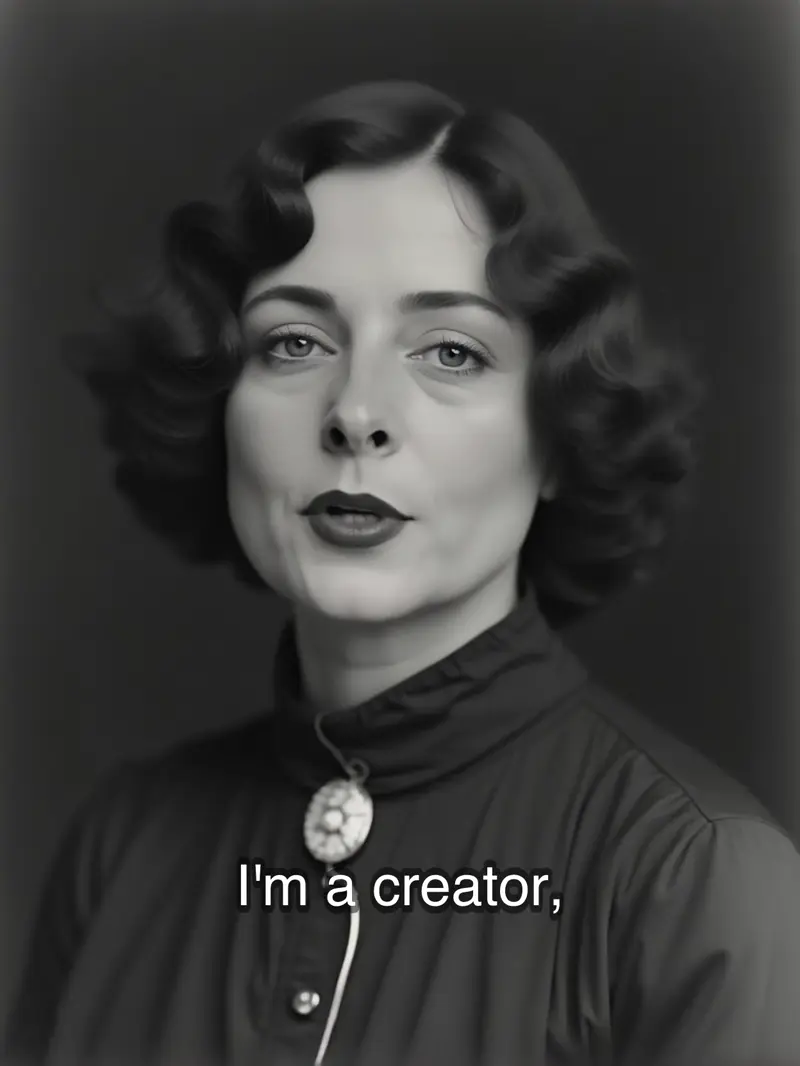
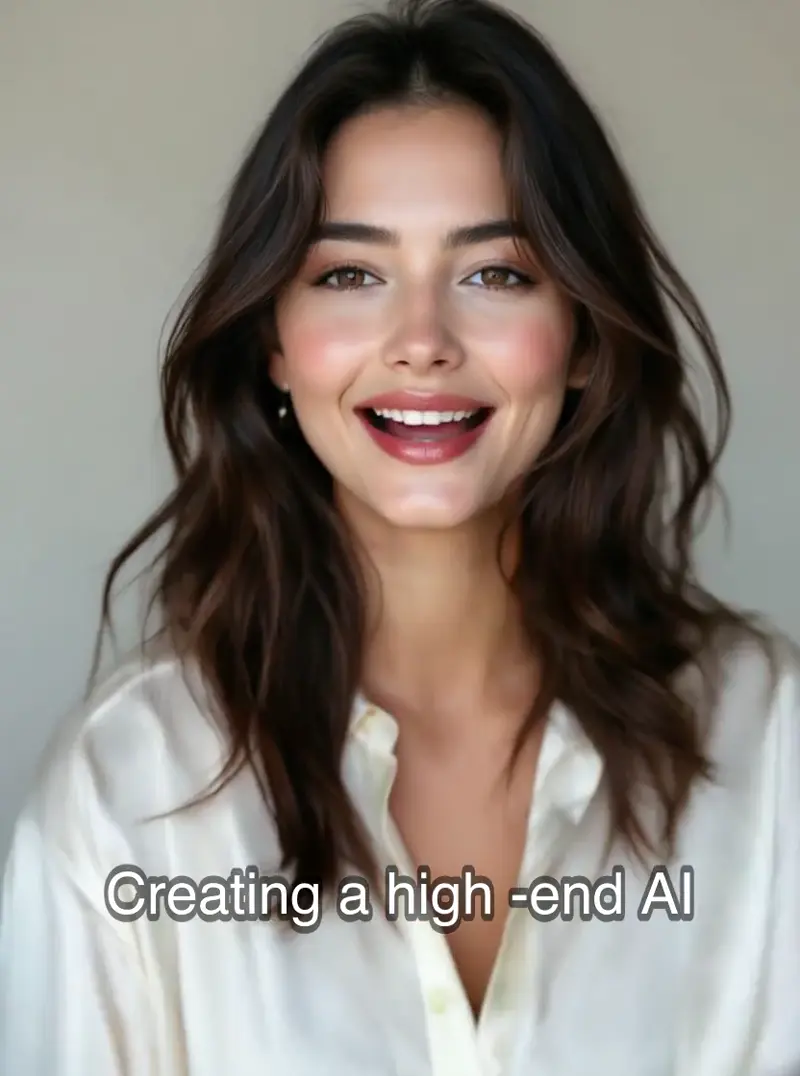
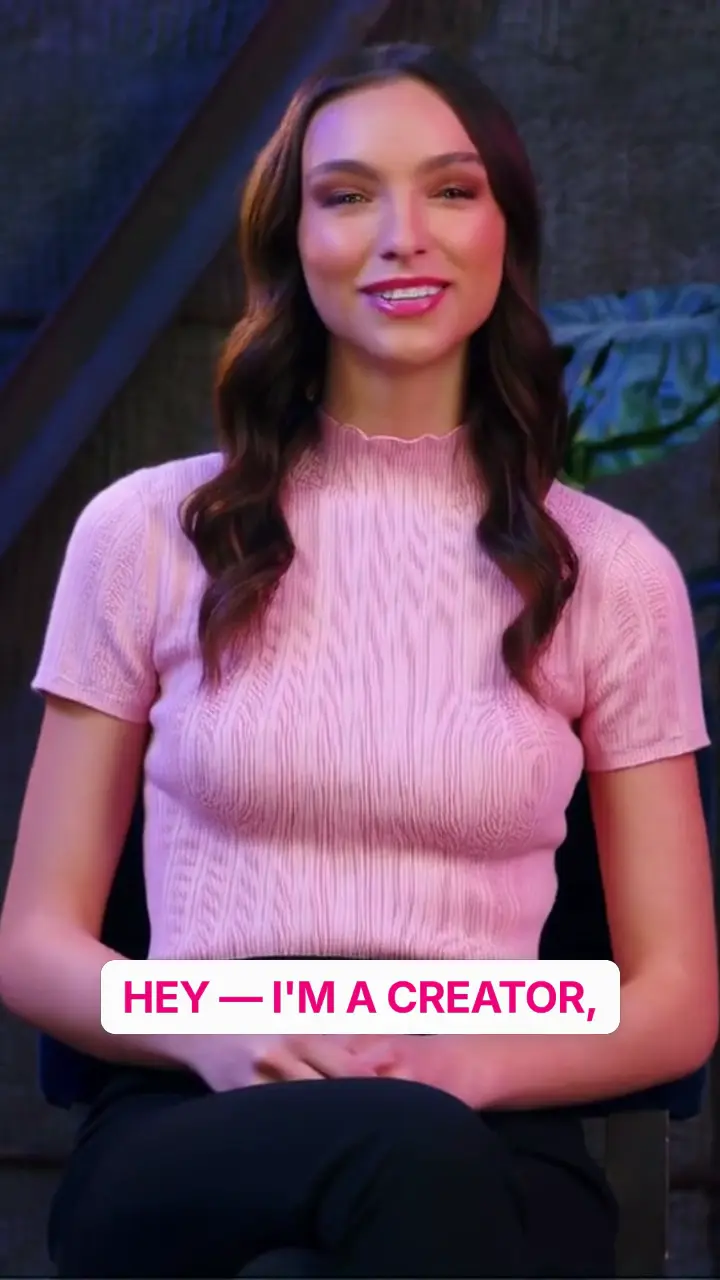
See it in action

Why gVideo
Built for results
Any decent portrait works
Phone snapshot, historical scan, corporate headshot, concept-art character — if it's front-facing and sharp enough at 512px on the short edge, it can be animated.
Two audio paths
Use HeyGen V3's built-in TTS (30+ languages, natural narration voices) or bring your own audio file into Omnihuman for maximum voice control.
Tight lip-sync, believable motion
Not old-school 'animate the mouth-rectangle' avatar work. Both models learn from real speech data — lip shapes, head nods, micro-expression timing all match the audio.
Iterate without re-shooting
Change the script, re-render. Swap the photo, re-render. Pay per render, not per seat — one Pro subscription covers 20+ HeyGen V3 renders per month.
Three decisions before you hit Generate — voice source, sync engine, end use
Voice source, sync engine, end use — the three-decision tier that picks the model for you
voice source: picking the right voice for your project
The choice between recording your own voice or using TTS impacts the quality of the final video. Lip-sync issues are common; as shared on r/aivideo, "Done a few things to get the lip sync better; still not perfect and the jankiness in some of the movements is still there." (2025-08, 3,001↑ 485c). A top reply (76↑) suggests improving sync by extending scenes and focusing on reactions. This highlights how your voice source affects sync quality. We offer three options: record-your-own for a natural touch, TTS for language consistency, and upload-pre-recorded for professional voiceovers. Omnihuman v1.5 charges 35 credits per 5-second clip for all. Use the generator above to see which suits your project.
sync engine: finding the right model for lip-sync
Picking the right model is crucial. The r/StableDiffusion community shares insights: "In this workflow, you will be able to turn any still image into a talking avatar using Wan 2.1 with Infinite talk." (2025-09, 440↑ 76c). Despite the promise, a user mentioned a visual drift: "Is the increasing saturation and contrast a by-product of using Infinite Talk or added on purpose?" (52↑). Such drift is common in open-source setups. Our platform offers Omnihuman v1.5 with 30-second renders at 35 credits per 5-second clip. HeyGen V3 gives 1,281 stock avatars for 90 credits per 30 seconds if you lack a portrait photo. Run a test in the picker to compare Omnihuman and HeyGen V3 with the same script.
end use: deciding based on your final deliverable
Decide your final deliverable first; it guides your model and voice path choice. For social hooks (6-15 seconds), upload a custom photo, use TTS with 9:16 framing, and apply Omnihuman for 35 credits per 5-second clip. This method is budget-friendly for testing versions. For longer explainer videos (60-90 seconds), HeyGen V3 stock avatars maintain consistency across videos at 90 credits per 30 seconds, totaling 270 credits for 90 seconds. If you need a recurring brand spokesperson, create a mascot through Omnihuman and save it for future scripts. As noted on r/aivideo, "AI would have saved us a ton of money and time." (2025-05, 251↑ 45c). Use the generator above to set your end use, guiding your model and voice path selection.
Model Recommendation
Best model for this use case
For most 'photo to talking video' work — explainers, testimonials, greetings, memories — HeyGen V3 with built-in TTS is the fastest path. Bring-your-own-audio? Use Omnihuman instead for richer full-body motion.
“I uploaded a 30-year-old family photo and rendered grandpa saying 'happy birthday' in his own recorded voice. My mom cried. Shipped the same day.”
Common questions
What kind of photo works best?
Front-facing or 3/4-facing portrait, clearly lit face, one person only, 512px+ on the short edge. Group photos, side profiles, and heavily stylized art (cartoons, paintings) produce weaker results on HeyGen V3; Omnihuman handles stylized inputs slightly better but still prefers photoreal portraits.
Can I animate old / historical photos?
Yes. Both models are trained on diverse face data and can animate vintage photos, scanned family portraits, or upscaled old images. Best results come from photos that have been gently upscaled (4K is overkill — 1080p on the short edge is plenty) and color-corrected first.
Do I have to write a script, or can I just speak?
Either. HeyGen V3 takes a written script and renders with built-in TTS. Omnihuman takes an audio file (your voice, a pro VO, or any licensed track) and drives motion from it. Recording a 20-second voice memo is often the fastest path when you want a specific voice.
How realistic does the output look?
On a 1080p portrait with clean lighting and a natural-voice audio track, the output passes most casual viewing. At close inspection you'll notice subtle stiffness around cheeks and a slightly off-rhythm blink cadence — state-of-the-art in April 2026, not indistinguishable-from-real.
Can I use this output commercially?
Yes on paid plans. Commercial rights are included with every paid tier on gVideo. But: if the photo is of a real person, you still need their permission to publish a talking video of them (rights-of-publicity laws apply to AI-animated portraits the same as actual video).
How long can the talking video be?
Both HeyGen V3 and Omnihuman render 30 seconds per invocation on gVideo. For longer content, render multiple 30-second clips and stitch them in an editor — the models are frame-consistent so cuts feel natural.
ALSO GREAT FOR